
Appearance
Recording goal progress
Teachers record goal progress in two places - both work the same way and both reflect the progress tracking mode you've configured:
- The class page - the attendance list for a specific session, useful in the moment.
- The student progress section - under Customers, useful when reviewing a single student across a longer arc.
The control you see against each goal depends on whether you're in Basic or IDM mode.
Basic mode
Each goal has a checkbox. Tick it when the student has achieved the goal; un-tick it if you need to revert.
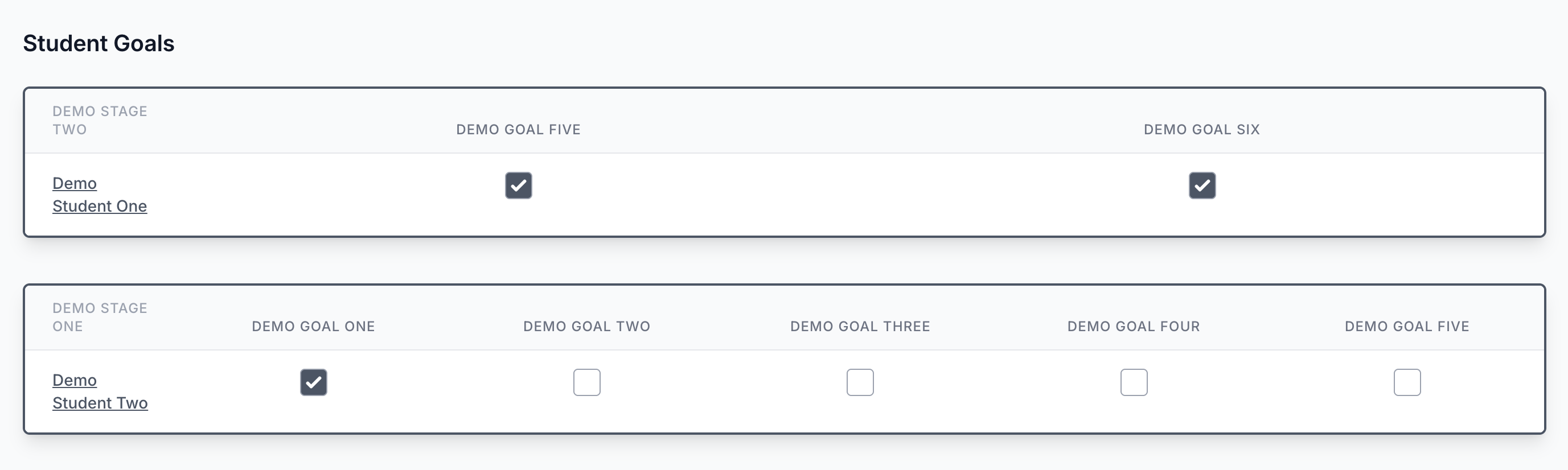
That's the whole interaction - it's deliberately quick so teachers can mark several goals in a busy session.
IDM mode
Each goal has a checkbox-style button that cycles through four states each time it's clicked:
- Not Started (empty) - the skill hasn't been introduced in sessions yet.
- Introduced (blue I) - the skill has been introduced and the student has had a practice.
- Developing (amber D) - the student has practised more than once and is refining key elements.
- Mastered (green M) - the student has shown competence across multiple attempts and the skill is complete for the stage.
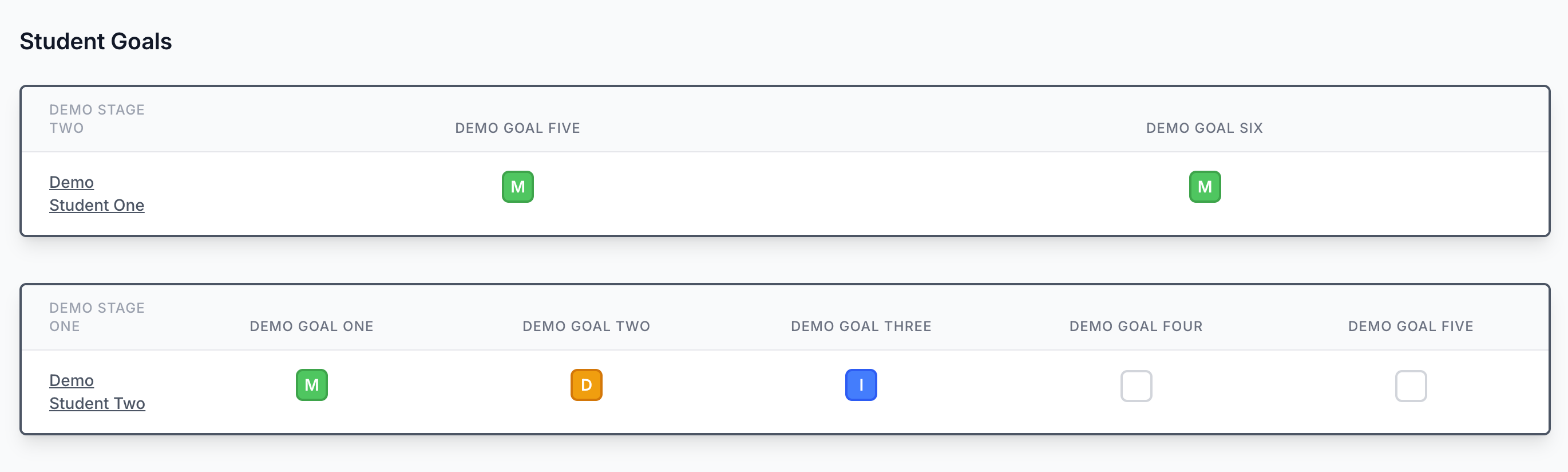
Hover over the button to see the full state label. The letter inside the button means the state is legible even if you can't make out the colour.
For more on when to use each state, see Understanding the I/D/M states.
Reverting a mastered goal
Once a goal is Mastered (or ticked in Basic mode), only coordinators and admins can revert it. Teachers see the goal locked in its mastered state.
This is a deliberate guard: mastery is a meaningful milestone for the student and the family, and we don't want it accidentally undone in a busy session. If a teacher does need a mastered goal reverting, ask a coordinator or admin to do it.
TIP
Whichever mode you're in, the family sees the updates straight away in their account. There's no separate "publish" step.