
Appearance
Adding goals to a stage
Goals are the specific skills or outcomes that make up a stage. A stage is "complete" once a student has worked through its goals - so the goals you choose are what actually define the stage.
To add goals, open a stage from the Stages area of Learning to find the Goals.
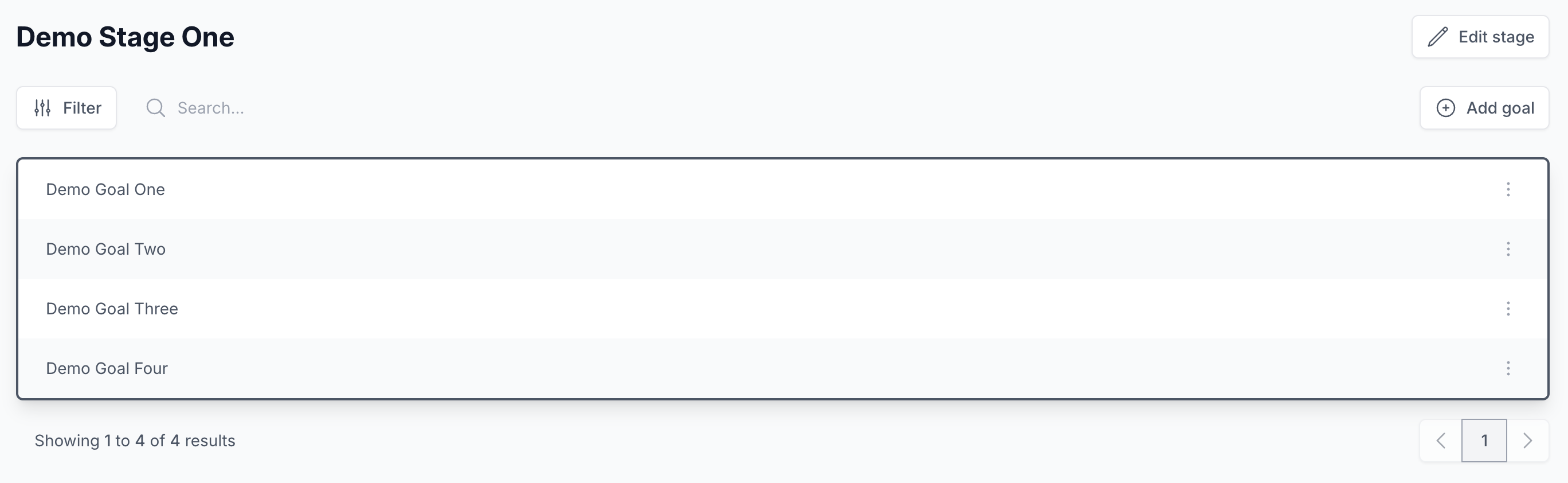
Click Add goal, type the goal, and save. Repeat for each goal you'd like to track.
Writing good goals
Two principles tend to make goals work well:
- Keep them short. A goal is a label, not a description. "Floats on back" beats "Can float comfortably on their back with arms extended for at least five seconds".
- Keep them specific. Goals that describe one observable skill are easier for teachers to assess consistently. If a goal feels like it covers several skills, it's usually two or three goals in disguise.
TIP
Most stages have between 5 and 15 goals. Fewer than that and the stage doesn't feel like meaningful progress; more and it becomes hard for teachers and families to keep track.
Goal description
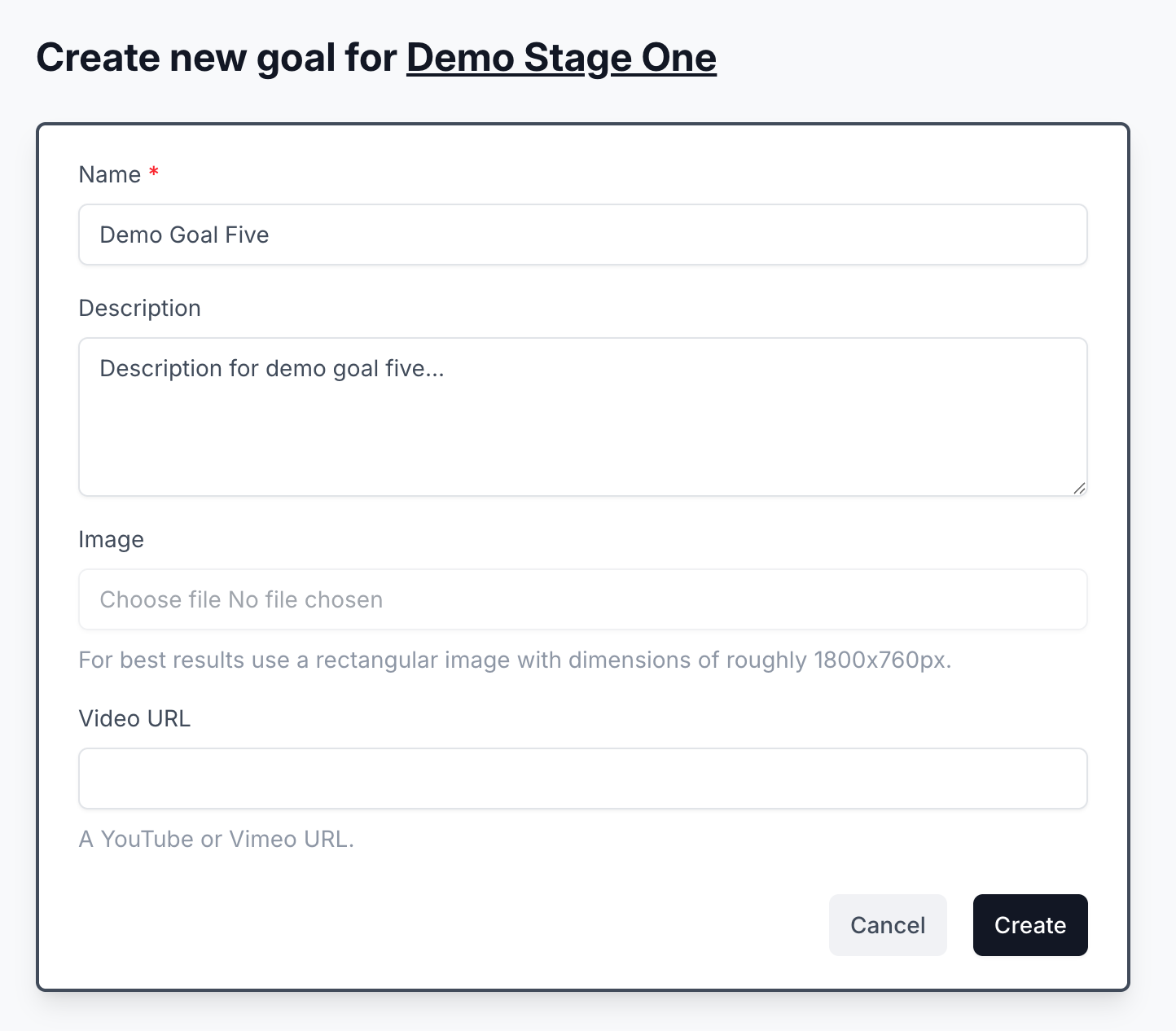
Each goal can have a Description that gives parents context - what the skill is and why it matters. Keep it plain and brief; families see it when they open the goal's details.
Goal image
Add an Image to illustrate the skill.
TIP
For best results use a rectangular image of roughly 1800x760px.
Goal video
Paste a Video URL to embed a short demonstration. We support YouTube and Vimeo.
- YouTube: open the video, click Share, and copy the link.
- Vimeo: open the video, click Share, and copy the link under Link.
When a goal has any of these, families get a View details link next to it that opens the description, image, and an embedded video player. We don't host the video - it stays on YouTube or Vimeo and plays from there.
What's next
Once a stage has goals, teachers can start recording goal progress against them.